
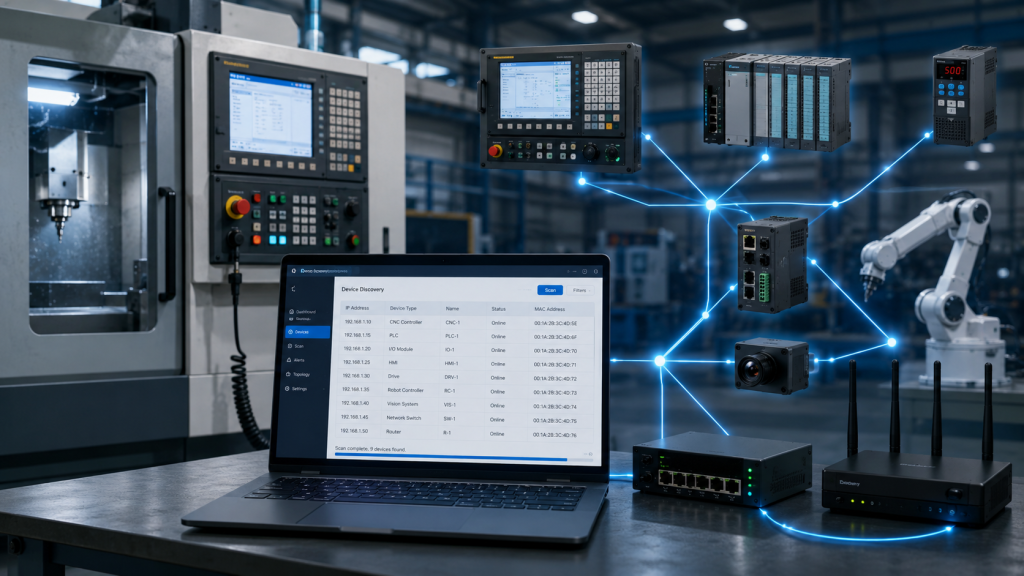
Connecting a CNC controller to Wi-Fi or Ethernet is usually simple, but finding the IP address assigned by the router can be more difficult. This is common with devices that have no display, including CNC controllers, development boards, network printers, Raspberry Pi computers, and embedded systems.
Every device connected to a local network receives an IP address. CNC control software needs this address to communicate with the controller. When DHCP is enabled, the router assigns the address automatically, and it may change after either the router or controller is restarted.
Network Utilities Ultimate for Android includes an IP Scanner that simplifies this process. First, connect your Android phone or tablet to the same Wi-Fi network as the CNC controller. Open Network Utilities Ultimate, choose IP Scanner, and scan the suggested local IP range.
The app displays discovered devices with their IP addresses and, when available, hostnames, response times, MAC addresses, and manufacturer information.
When the controller is not clearly identified, use a comparison scan. Turn off the CNC controller and scan the network. Then turn it on, wait for it to reconnect, and scan again. The new device appearing in the second scan is usually the controller.
After finding the IP address, enter it into your CNC software together with the required TCP port. Rabbit Board 4-Axis users can use this method before connecting through SourceRabbit Focus.
The same approach works for printers, IP cameras, servers, NAS devices, and smart equipment. For a permanent setup, create a DHCP reservation in your router so the device always receives the same address.
Network Utilities Ultimate also includes Ping, Port Scanner, Traceroute, DNS Lookup, Wi-Fi Analyzer, and other useful tools. Download Network Utilities Ultimate from Google Play and discover devices directly from your Android phone without opening complicated router administration pages or menus.