
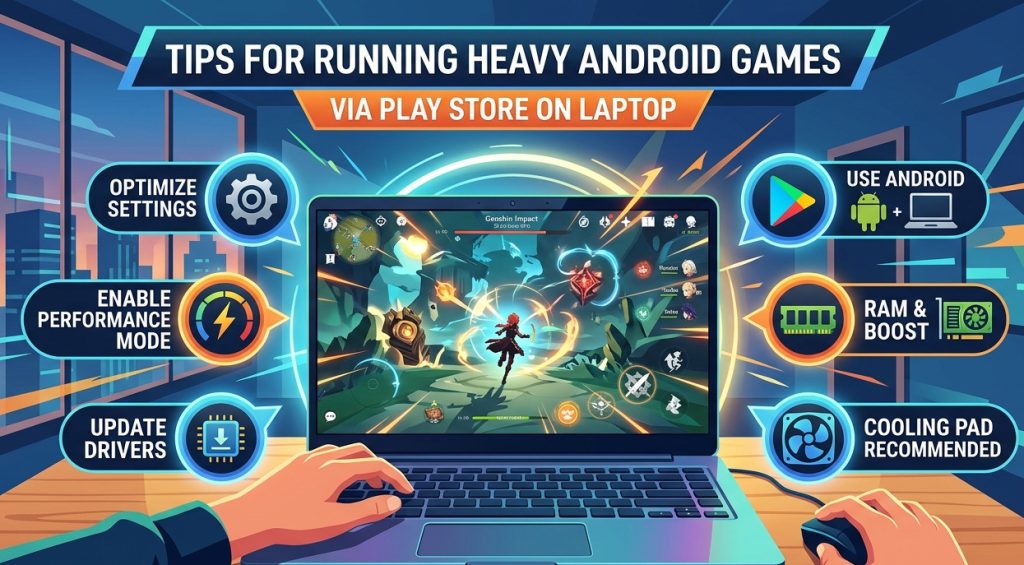
Playing Android games on a laptop is gaining traction, thanks to emulators that empowers Play Store apps to run n PC. From casual games to hardcore games such as PUBG Mobile, Genshin Impact or Call of Duty Mobile, operating these games efficiently requires proper optimization. Many users come across lag, slow loading or even crashes while playing heavy games. We will explore practical tips and technical tweaks to assist you run heavy Android games on your laptop via Google Play Store for laptop smoothly.
Choose the Right Android Emulator
Choosing the correct emulator is important for performance:
- BlueStacks: Great for high-end games, provides GPU optimization and customizable performance settings.
- LDPlayer: Perfect for mid-range laptops, lightweight and fast.
- Nox Player: Best for casual or moderately heavy games with reliability.
Tip: Match your emulator to your laptop specifications and the game’s requirements to prevent performance issues.
Optimize Emulator and Laptop Settings
Allocate More RAM and CPU
Heavy games need resources. Assign more RAM and CPU cores to the emulator:
- Open emulator → Settings → Performance tab
- Increase memory allocation ( for example 4GB or higher if available)
- Assign multiple CPU cores for improved multitasking
Adjust Graphics Settings
- Allow high-performance mode if available
- To decrease lag, adjust in-game graphics settings
- Use DirectX or OpenGL mode in the emulator based on compatibility
Enable Virtualization
Virtualization enhances emulator efficiency. To allow:
- Enter BIOS settings during laptop boot
- Allow Intel VT-x or AMD-V option
- Then Save and restart
Keep Drivers and Software Updated
- Update GPU drivers to assure seamless rendering
- For improved compatibility, keep Windows or macOS updated.
- To prevent crashes, update your emulator and Play Store apps.
Reduce Background Apps
Running several applications simultaneously can overload CPU and RAM. Unnecessary programs should be closed such as web browsers, streaming apps, or other emulators to free resources for heavy games.
Ensure Stable Internet Connection
Heavy games frequently need online connectivity. To decrease lag:
- If easily possible, use wired Ethernet connection.
- Downloading massive files in the background should be avoided
- Test network speed and decrease latency for multiplayer games
Additional Tips for Smooth Gameplay
- While gaming, Limit emulator windows and tabs
- Allow high frame rate (FPS) settings in emulator options
- Consider upgrading RAM or switching to an SSD for rapid app loading
- To prevent crashes, regularly clear cache.
Conclusion
Accessing heavy Android games via Play Store on laptop is simple with the right setup. You can relish lag free gameplay, by selecting the correct emulator, allocating enough resources, adjusting graphics, allowing virtualization and ensuring a stable network. Executing these steps makes your laptop a dependable platform for casual and heavy Android games.