
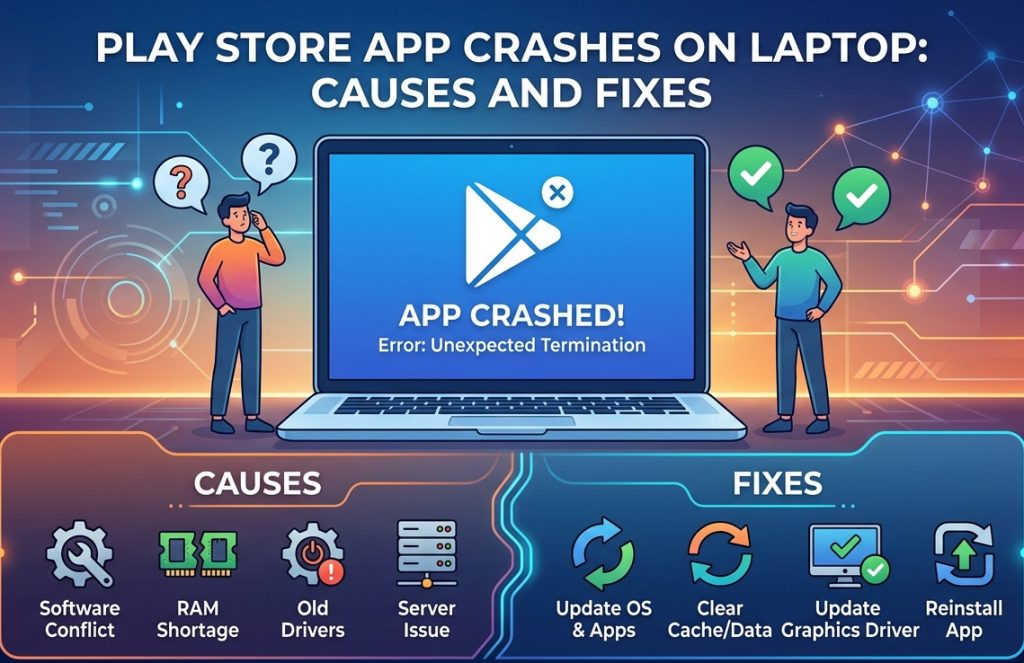
Using the Google Play Store on a laptop through emulators like BlueStacks, Nox Player, or LDPlayer is a prevalent approach to enjoy Android apps, games, and productivity tools on a bigger screen. Many users might come across the annoying problem of Play Store crashing on a laptop. Some apps might stop unexpectedly, fail to open or even freeze your emulator. As this can be frustrating, most of these problems have easy solutions. In this article we will discuss the leading causes of Play Store crashes on laptops and give detailed, step by step solution so you can relish a smooth Android experience on your PC.
Common Causes of Play Store Crashes on Laptop
Prior to implementing solutions, it is very important to know why the Play Store for laptop Crashes. Some of the major causes include:
- Outdated Emulator or Play Store App: Running an older version of BlueStacks, Nox, or LDPlayer can give rise to compatibility issues. Play Store updates regularly and older versions might not support newer app requirements.
- Insufficient System Resources: Heavy Android apps or games need enough RAM and CPU allocation. Apps may crash if your laptop is under powered or the emulator has limited resources.
- Corrupted Cache or Data: Cached files and stored data can become corrupted. This frequently may cause app freezes or unexpected crashes
- Network Connectivity Issues: An unstable internet connection can stop apps from loading properly causing download failure which trigger crashes.
- Conflicting Software: Antivirus programs, firewall settings and other background software interfere with emulator operations and affect Play Store access.
- Virtualization Disabled: Many emulators can perform better with virtualization enabled in BIOS. If it’s turned off, it can stop performance or cause instability.
How to Fix Play Store Crashes on Laptop
1.Update Emulator and Play Store
Keep your emulator and Play Store updated to the modern versions. Updates update issues, enhance compatibility and give better performance. Check for updates in emulator settings or download the advance version from the official websites.
2.Allocate More Resources to Emulator
Mostly crashes occur because of low memory or CPU allocation. To resolve this:
- Firstly Open emulator settings → Performance tab
- Improve RAM and CPU cores based on your laptop’s capacity
- Enable high-performance mode if available
- Restart the emulator for changes to take effect
This ensures heavy apps and games run seamlessly without freezing or crashing.
3. Clear Cache and Data of Play Store
Corrupted cache or data is the main reason for crashes. Clearing it frequently fix the issues:
- Open emulator → Settings → Apps → Google Play Store
- Then Tap Clear Cache and Clear Data
- Restart the emulator
This refreshes the app and eliminates old files.
4. Check Network Connection and Firewall Settings
- Make sure your internet connection is speedy and stable
- You can switch to a wired connection for optimal performance if required.
- Temporarily disable antivirus or firewall settings that can block the Play Store.
5. Reinstall Play Store
If the Play Store continues to crash:
- Uninstall the app from your emulator
- Then restart the emulator
- Reinstall the Play Store
A fresh installation eliminates corrupted files and gives a clean start.
Additional Tips for Smooth Play Store Experience
- Enable Virtualization in BIOS: Increase emulator speed and stability.
- Update GPU Drivers: Essential for graphic-heavy apps or games.
- Avoid Running Multiple Emulators Simultaneously: This can overload system resources.
- Monitor System Usage: Monitor RAM and CPU usage through Task Manager.
- Close Unnecessary Background Apps: Free up resources to enhance performance.
- Regularly Backup Data: This stops data loss during crashes.
Preventing Future Play Store Crashes
Prevention is better than solving problems. Here are some tips:
- Keep your emulator and Play Store updated always.
- You should check system compatibility before installing heavy apps or games.
- Maintain a stable internet connection.
- Avoid installing suspicious apps that might interrupt with Play Store performance.
- Continuously clear cache to stop corrupted data build-up.
Complying with these procedures, you can reduce the risk of crashes and relish a stable Play Store experience on your laptop.
Conclusion
Experiencing Play Store crashes no your laptop is frequent and it doesn’t have to spoil your experience. Mostly crashes occur because of outdated software, corrupted cache, network issues or insufficient resources. You can relish Android apps and games smoothly by updating your emulator, allocating enough RAM and CPU, clearing cache and assuring a stable internet connection. Your laptop will become a reliable platform for all your Play Store needs once you execute these directions carefully.